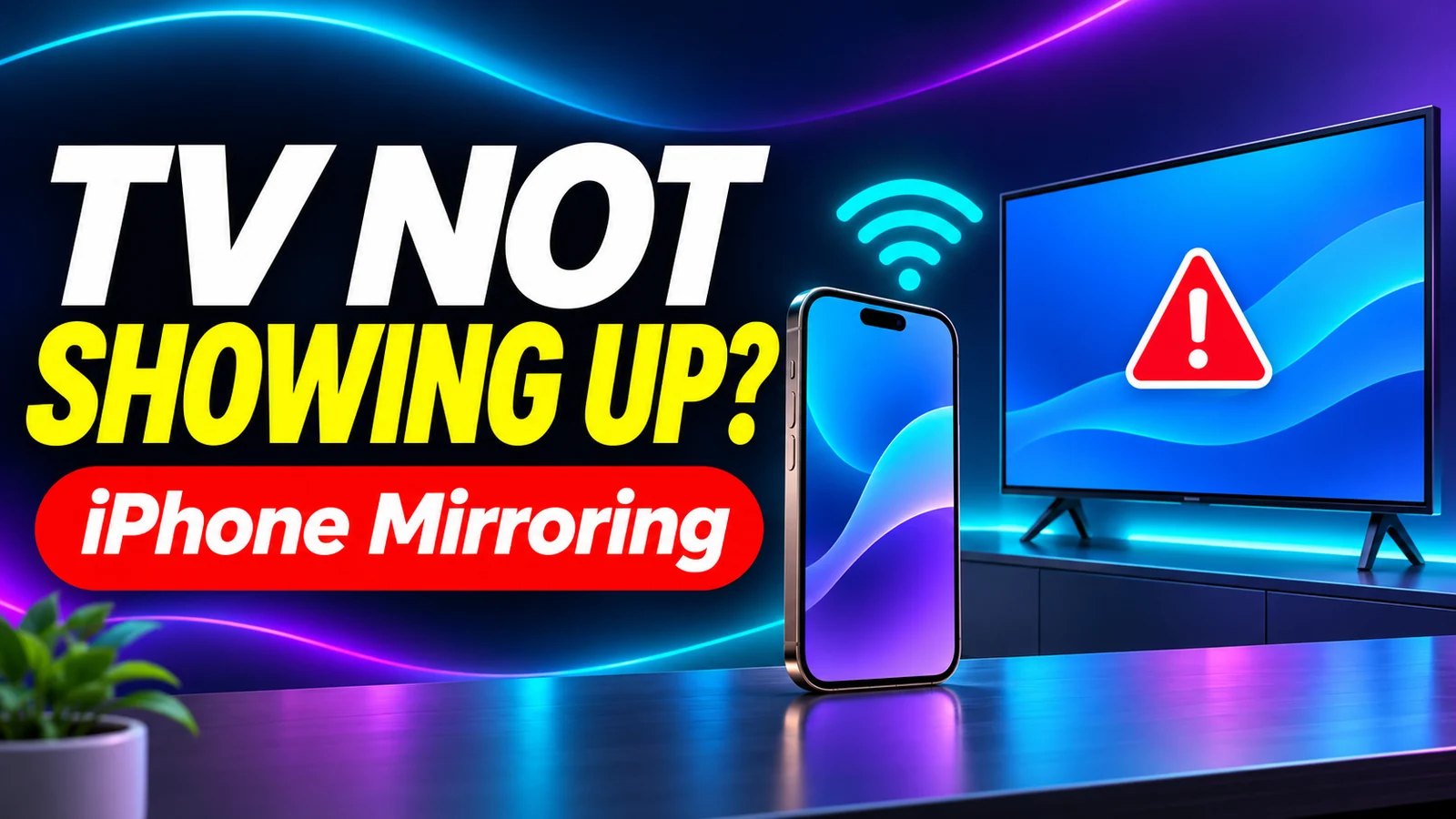
Is iPhone screen mirroring not working? Maybe your TV doesn’t show up in Screen Mirroring, AirPlay keeps disconnecting, or the picture goes black. Before you reset anything or pay for a mirroring app, start with the symptom you’re seeing.
- TV missing: Check that your exact TV model supports AirPlay, then turn AirPlay on and put both devices on the same Wi-Fi network.
- Connection dropping: Move closer to your router and try mirroring a photo before you test a video.
- Black screen in one app: Mirror your Home Screen. If that works, the app may restrict AirPlay or screen mirroring.
1. Your TV doesn’t show up in Screen Mirroring
- Check the TV model. Search for AirPlay in your TV’s settings or check the manufacturer’s support page for your exact model. Turn AirPlay on if the TV supports it.
- Check the Wi-Fi network on both devices. Compare the network names on your iPhone and TV. If one is on a guest network, try putting both on the same home network.
- Try again from Control Center. On an iPhone with Face ID, swipe down from the top-right corner. On a model with a Home button, swipe up from the bottom. Tap Screen Mirroring and select the TV. If the TV shows a passcode, enter it on the iPhone.
Still missing? Restart both devices, check for software updates, and try again. If this is an Apple TV you set up in the Home app, check whether its AirPlay access settings restrict who can connect.
2. AirPlay connects, then freezes or drops
Mirror a still photo for a minute. If the whole connection drops even with a photo, try moving the iPhone closer to the router and test again. If the connection stays stable with a photo but fails in one video app, try a second app. That gives you a way to narrow down the problem before changing your Wi-Fi settings.
If other devices on the same network also struggle, use our Wi-Fi troubleshooting guide.
3. Your TV shows a black screen
Return to the iPhone Home Screen while it’s still mirrored. If the Home Screen and your own photos appear on the TV but a particular video stays black, check whether the app supports AirPlay. Try the streaming app directly on your smart TV if it’s available there. If even your Home Screen is black, stop mirroring, restart both devices, and reconnect.
Common questions
Does every smart TV support iPhone screen mirroring?
AirPlay support depends on the model. A compatible Apple TV connected to the television is another way to receive AirPlay.
What if I’m trying to mirror to a Mac or Windows PC?
For a compatible Mac, check that AirPlay Receiver is enabled. For Windows, check that your receiver app is open and ready to receive AirPlay. For setup and other options, see our step-by-step guide to mirroring an iPhone to a Mac, Windows PC or smart TV.
What to do today
Start with one simple test. Open your iPhone Home Screen and try mirroring it. If your TV never appears, check compatibility, AirPlay settings and Wi-Fi. If the Home Screen appears and a video turns black, check the video app’s AirPlay support first.