Updated November 1, 2026. Want to see your iPhone screen on a bigger display? There are several ways to do it, but AirPlay screen mirroring, Apple’s interactive iPhone Mirroring app and QuickTime USB capture are different features. This guide explains which option works for a smart TV, Mac or Windows PC, where each option is available and how to troubleshoot connection problems.
Important for readers in Europe: Apple’s interactive iPhone Mirroring app remains unavailable in the European Union as of this update. AirPlay display mirroring and QuickTime wired capture are separate alternatives; the EU limitation does not mean that all iPhone screen sharing is unavailable. See Apple’s iPhone Mirroring requirements.
Choose by task before choosing an app
What do you need your iPhone to do?
Check built-in AirPlay first.
Buy no receiver if your TV already supports it.
Start with QuickTime and a data cable.
Avoid adding wireless networking to a simple capture task.
Evaluate an AirPlay receiver.
Test discovery and your actual app before paying.
Check Apple’s iPhone Mirroring requirements.
Currently unavailable in the EU.
Our buying rule: start with the equipment you own. A presenter with a compatible TV, a tutorial creator with a Mac and a trainer using Windows need different solutions. Buying the same “mirroring app” for all three can add cost without solving the actual problem.
iPhone mirroring methods compared
| Method | Destination | What it does | Main requirements |
|---|---|---|---|
| AirPlay Screen Mirroring | Apple TV, compatible smart TV or supported Mac | Displays your iPhone screen | AirPlay-compatible receiver, usually shared Wi-Fi |
| Apple iPhone Mirroring app | Compatible Mac | Lets you interact with the locked iPhone from the Mac | iOS 18+, macOS Sequoia 15+, compatible Mac; not currently available in EU |
| QuickTime Player with USB | Mac | Displays and can record the connected iPhone screen | Appropriate cable, Mac, QuickTime Player |
| Third-party AirPlay receiver | Windows PC | Displays and sometimes records iPhone screen | Receiver software, compatible devices/network; licensing may apply |
1. Mirror your iPhone to a smart TV or Apple TV with AirPlay
For a supported TV, AirPlay is usually the simplest method. You do not need a separate iPhone mirroring app if the TV has built-in AirPlay support. Compatibility depends on the exact TV model and its settings, not merely its brand.
- Connect your iPhone and AirPlay-compatible TV or Apple TV to the same Wi-Fi network.
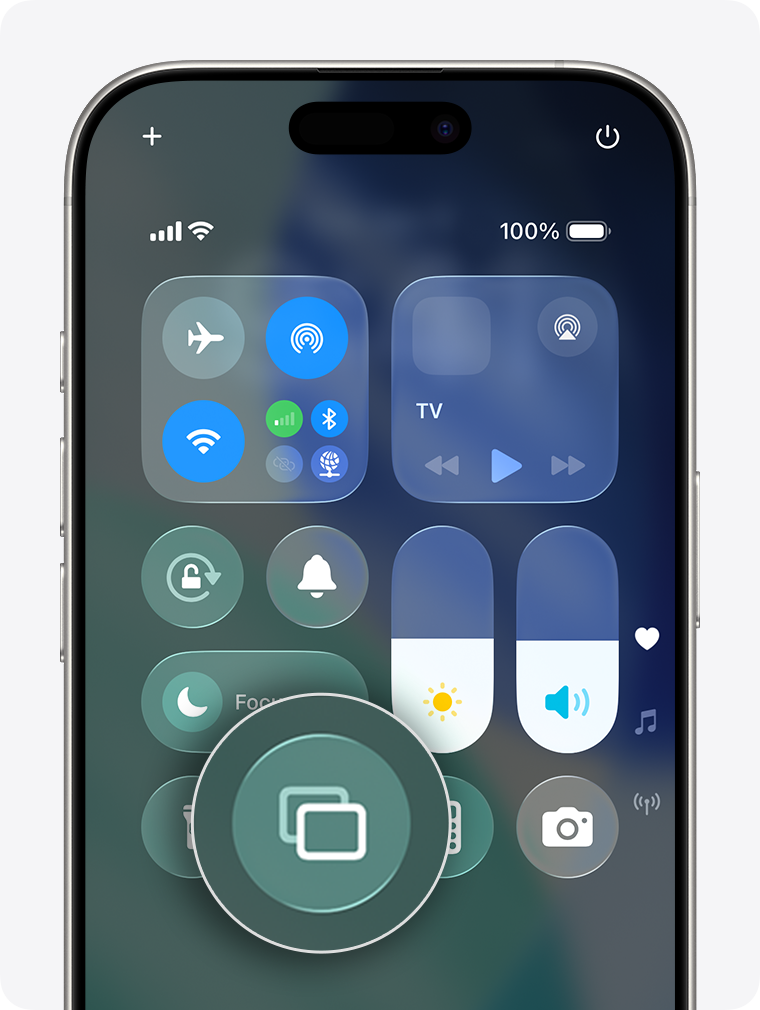
- On an iPhone with Face ID, swipe down from the top-right corner to open Control Center. On older models with a Home button, swipe up from the bottom.
- Tap Screen Mirroring, then select your TV.
- If a code appears on the TV, enter it on the iPhone.
- To finish, reopen Control Center, select Screen Mirroring, then choose Stop Mirroring.
If the TV does not appear, check whether AirPlay is enabled in the TV settings, confirm both devices are on the same network, and restart the devices. Some streaming services restrict mirroring of protected video; a black screen may be a content restriction rather than a broken connection. See Apple’s AirPlay screen mirroring instructions.
2. Mirror your iPhone screen to a Mac using AirPlay
A compatible Mac can act as an AirPlay receiver. This is for viewing the screen, not controlling the iPhone apps with the Mac mouse and keyboard.
- On the Mac, confirm that AirPlay Receiver is enabled in the relevant system settings and that the Mac supports the feature.
- Make sure the Mac and iPhone can communicate over the local network.
- On your iPhone, open Control Center and tap Screen Mirroring.
- Choose the Mac and enter any prompted code.
- Use Stop Mirroring when finished.
Mac support and permissions vary by model and macOS release. Consult Apple’s guide to AirPlay on Mac when the Mac is not visible.
3. Control an iPhone from a Mac with Apple’s iPhone Mirroring app
This is a different capability from AirPlay. Apple’s iPhone Mirroring app lets you interact with a nearby iPhone from the Mac while the iPhone stays locked. It requires a Mac with Apple silicon or an Apple T2 Security Chip running macOS Sequoia 15 or later, an iPhone with iOS 18 or later and a passcode, the same Apple Account with two-factor authentication, Wi-Fi and Bluetooth enabled, and other continuity conditions.
EU availability: Apple currently states that iPhone Mirroring is not available in the European Union. If you are in Germany or another EU country, use AirPlay for screen viewing or QuickTime for wired capture instead. Do not attempt to rely on workarounds presented as officially supported.
In regions where the feature is available and both devices qualify, open iPhone Mirroring from the Mac’s Applications folder or Dock, follow the authentication prompts and use the iPhone apps in the Mac window. Quit the app or unlock the iPhone to stop. The Mac must not simultaneously use certain other sharing features. See Apple’s full setup, security and compatibility requirements.
4. Display or record your iPhone on a Mac using USB and QuickTime
QuickTime offers a useful wired option for tutorials, demonstrations and screen recordings. It does not require Apple’s interactive iPhone Mirroring feature.
- Connect your iPhone to your Mac with a suitable USB-C or Lightning cable, depending on the iPhone model.
- Approve any Trust This Computer prompts if they appear.
- On the Mac, open QuickTime Player → File → New Movie Recording.
- Open the recording source menu beside the recording controls and select your connected iPhone as the camera source.
- View the iPhone screen in QuickTime. If you need a recording, start recording, stop when finished, and save the file.
Choose a suitable quality setting and ensure there is enough storage for recordings. QuickTime does not promise universal playback of copy-protected content, and a cable does not give the Mac remote control of the iPhone. Apple documents the steps in Record a movie in QuickTime Player.
5. Mirror an iPhone to a Windows PC
Windows is not a built-in AirPlay receiver for an iPhone in the same way that a compatible Apple TV is. You generally need a third-party receiver application. One documented example is Reflector 4, which supports receiving AirPlay connections on Windows. We have not independently tested every advertised mirroring app or device combination.
- Check the app developer’s current Windows and iPhone compatibility information, cost and privacy policy.
- Install the receiver application from its official publisher and open it.
- Connect the Windows PC and iPhone to an appropriate shared network; some networks block device discovery.
- On the iPhone, open Control Center → Screen Mirroring and choose the receiver if it appears.
- Accept any connection prompt or PIN on the PC. Stop mirroring from the iPhone when finished.
Reflector’s developer notes that network discovery can require the devices to be on the same subnet and to permit Bonjour/mDNS traffic. Reflector acts as a receiver; it is not a way to remotely operate iPhone apps from Windows or to transmit content onward to Apple TV. See Reflector’s technical specifications. Other commercial software may provide different features, but check present-day pricing and compatibility rather than assuming an old list of apps remains accurate.
Before buying: built-in tools versus paid receivers
There is no defensible overall winner without testing the same phone, computer, network and workload. The comparison below concerns documented capabilities and purchase checks, not measured speed or reliability.
| Option | Evidence and fit | Cost and purchase check |
|---|---|---|
| Built-in AirPlay | Apple documents screen viewing on compatible TVs and Macs. Start here for an occasional presentation. | No extra receiver-app purchase on supported equipment. Confirm the exact TV or Mac first. |
| QuickTime with USB | The wired Mac recording workflow described above suits making a tutorial. | Use existing compatible equipment; a suitable data cable may be needed. It does not provide remote control. |
| Reflector 4 | The developer documents Windows 10 or newer, AirPlay reception, recording and multiple-device display. A candidate for Windows training or demonstrations. | Paid software. The vendor offers a trial route and describes one-device licences. Confirm platform, current checkout total, recording limits and trial conditions. |
| AirServer Windows Desktop Edition | The developer documents AirPlay reception and simultaneous client layouts, with Microsoft Store distribution. A candidate when presenting multiple devices is important. | Paid licensing. Verify the exact Windows edition, current compatibility, regional Store price and licence conditions. Do not assume every AirServer edition has identical features. |
Sources: Reflector features and licensing, system and network requirements, downloads and AirServer Windows Desktop documentation. These are ordinary source links, not affiliate purchase links.
Our assessment: consider Reflector when its documented recording workflow matches your task; consider AirServer when its documented receiver and multi-client layout features match your setup. Neither is established here as faster or more reliable. We could not verify a consistent regional checkout price from the pages reviewed, so we have not supplied a potentially misleading price or savings claim.
A five-minute acceptance check before you pay
- Connect on your real network. Use the actual room, phone and computer. A successful home connection does not establish that a school or office network permits discovery.
- Open your actual app. A visible Home Screen does not prove that a protected video will play. Check audio separately.
- Try the task. Scroll a document, rotate the phone and, if needed, make a short recording. Review the saved file rather than only the preview.
- Check recovery and privacy. Disconnect and reconnect. Verify connection approval controls and hide personal notifications.
- Review the total. Check tax, currency, supported operating systems, number of licensed computers, update terms and refund conditions.
This is a reader test procedure, not a report of tests performed by TechDrivenz. If a trial fails the task, do not assume purchasing the licence will fix it.
6. Troubleshooting: iPhone mirroring not working
The TV or Mac does not show up
Confirm receiver compatibility and AirPlay settings. Check Wi-Fi, ensure both devices are on an appropriate network, and disable network isolation or restrictive guest Wi-Fi where appropriate. A VPN or enterprise firewall can interfere with local discovery.
The screen is black while a video plays
Some video services prohibit screen mirroring for licensed or protected content. Try the service’s native TV app or a supported streaming option rather than assuming the mirroring software is faulty.
Mirroring is slow or disconnects
Move closer to the Wi-Fi access point, reduce network congestion, test another network, and restart the devices. Wireless performance depends on network conditions; wired QuickTime capture is an alternative for Mac recording workflows.
Apple’s iPhone Mirroring app says it cannot connect
Check whether the feature is available in your region first. In a supported region, confirm compatible Mac hardware, software versions, account, two-factor authentication, Bluetooth and Wi-Fi, iPhone lock state and proximity. AirPlay display mirroring has different requirements.
The iPhone is not shown in QuickTime
Try a working data-capable cable, unlock the iPhone, respond to trust prompts, reconnect it and reopen the recording-source menu.
7. Privacy and security when sharing your screen
- Screen mirroring can expose notifications, private messages or account information. Enable Focus or Do Not Disturb before presentations.
- Approve receiver PINs or connection prompts only for devices you recognize.
- Download Windows receiver applications from official publisher websites; review permissions and license terms.
- Stop mirroring after use and delete unneeded recordings, especially those containing personal or workplace information.
- On managed school or workplace networks, follow local IT rules rather than bypassing security controls.
Frequently asked questions
Is Apple’s iPhone Mirroring the same as AirPlay?
No. AirPlay displays iPhone content on compatible receivers; Apple’s iPhone Mirroring app, where available, can let you operate the iPhone from a compatible Mac while the phone stays locked.
Does Apple’s interactive iPhone Mirroring work in Germany?
As of October 31, 2026, Apple states that the interactive feature is unavailable in the European Union, including Germany. AirPlay and suitable wired capture workflows are separate features.
Can I mirror my iPhone to a Windows laptop?
Yes, with suitable third-party receiver software, but compatibility and recording capability depend on the product. Windows does not gain Apple’s native Mac-only iPhone Mirroring controls simply by receiving the screen.
Can I mirror an iPhone using USB-C?
Yes, on a Mac you can connect a compatible iPhone using a data-capable USB-C cable and select it as a source in QuickTime Player. Older iPhone models may need a Lightning cable instead.
Will every movie or streaming service mirror successfully?
No. Certain apps or licensed videos may restrict AirPlay or screen capture. Use an authorized playback method supported by that service.
Further reading
See Apple’s official documentation for AirPlay, interactive iPhone Mirroring and QuickTime USB recording. On TechDrivenz, explore hidden iPhone features and Wi-Fi troubleshooting tips.
Bottom line
For a TV, start with AirPlay. For Mac screen recording, use QuickTime and a suitable cable. For viewing on Windows, choose an appropriate third-party AirPlay receiver. If you want to control an iPhone from a Mac, check Apple’s interactive iPhone Mirroring requirements and regional availability first. Verify current support details before purchasing additional software or hardware.